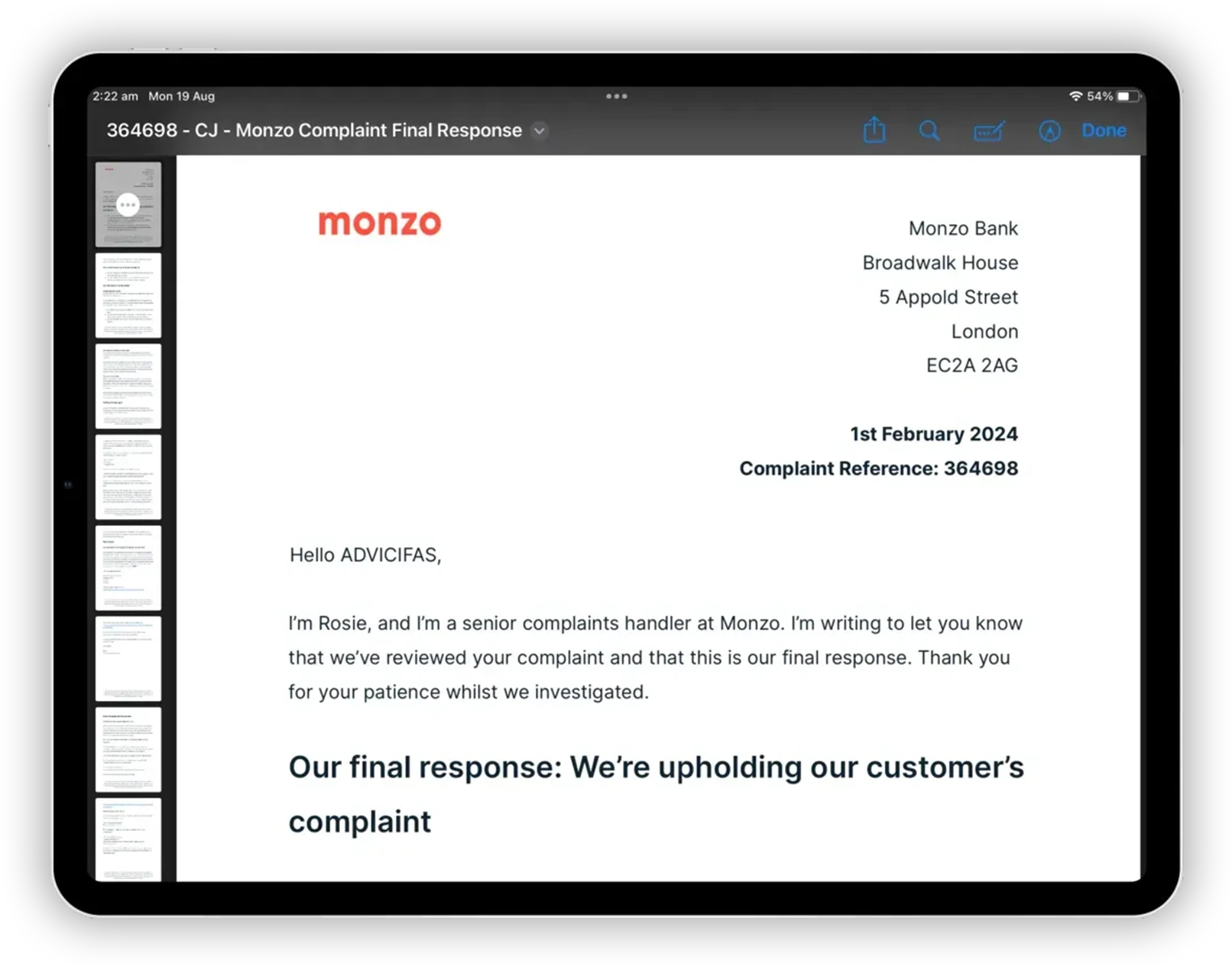
Once a letter has been generated and you've reviewed it (and optionally refined it), you're ready to send. Nothing goes out without your approval.
Sending while direct email is paused
Sending letters directly from the app is being upgraded. For now, you send each letter yourself:
How to send
The letter content is copied to your clipboard. You then paste it into your own email client and send it yourself.
- Full content copied: the complete letter, properly formatted, ready to paste
- You choose the method: email, letter by post, or through the institution's complaints portal
- You upload the response manually: when the institution replies, upload it to your case
Once you confirm it has been sent, the letter is recorded as sent in your case. The system tracks the send date and uses it for deadline monitoring, chaser creation, and GDPR breach recording regardless of how you sent it.
What the institution sees
Regardless of how you send, the institution receives:
- A letter from you: in your name, in your writing style, from your email address
- No mention of ADVICIFAS: there is no branding, footer, or metadata identifying the letter as system-generated
- Professional formatting: clean, properly structured correspondence that reads like a well-prepared challenge
What happens after you send
Once the letter is recorded as sent:
- An upload step is created: to track the institution's response. See What is the roadmap.
- Deadline monitoring begins: the system tracks statutory response deadlines from the send date.
- Your case analysis refreshes: the case intelligence updates to reflect the correspondence sent.
- If no response arrives in time: a chaser step is created automatically.
- If a SAR demand was included: an additional upload step appears for the SAR response.
Finding the institution's email
The system looks up the institution's complaints email or Data Protection Officer email automatically. If it can't find one, you'll be asked to enter it. Common places to find it:
- The institution's website: usually under "Complaints" or "Contact us"
- Your original correspondence: if they've written to you before, the reply address is usually the right one
- Their privacy policy: often lists the Data Protection Officer's contact details
If you're unsure which email to use, the complaints email is generally the best starting point. For GDPR-specific letters (SAR, Article 16/17 challenges), the Data Protection Officer's email is more appropriate if available.