Your CIFAS report, officially called a "Subject Access Returned Data" or statutory disclosure, is the document CIFAS sends you when you request your data. It lists every marker filed against you, including the filing institution, marker type, and date recorded.
This is the document the system needs. Not a credit file, not a bank letter, not a screenshot of a decline: the actual CIFAS statutory disclosure.
What the CIFAS report looks like
The front page is a letter from CIFAS titled "Subject Access Returned Data". It looks like this:
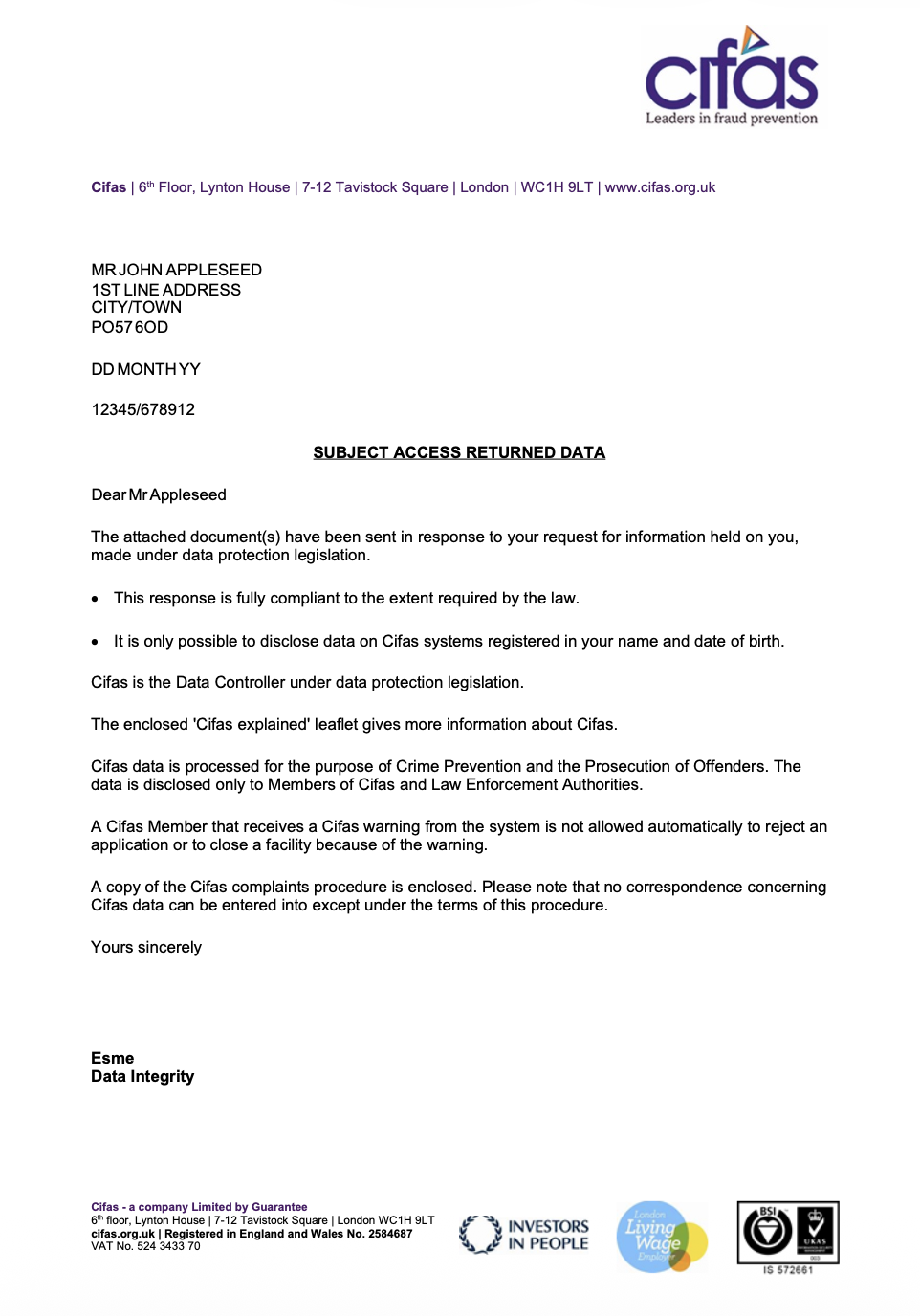
Example CIFAS statutory disclosure front page
The attached pages list your markers, each one showing the filing institution, marker type (e.g. "Misuse of Facility", "False Application"), and the date it was recorded. This is what the system reads and parses.
CIFAS fraud markers usually do not appear on credit files from Experian, Equifax, or TransUnion. You must request this document directly from CIFAS. Credit files won't work.
How to get your CIFAS report
Request a free statutory disclosure from the CIFAS Subject Access Request form. CIFAS is legally required to respond within one month. In practice, most reports arrive within 2-3 weeks.
You'll need to provide your full name, date of birth, and address. CIFAS will send the report to the address they hold on file.
If you already know you have a marker (because a bank told you or you were declined for something) but haven't received the CIFAS report yet, you'll need to wait for it. The system needs the full statutory disclosure to identify your markers accurately.
How to upload
During registration, the upload screen is the first thing you see. Drag and drop the file or tap to browse.
- PDF only: this is the format CIFAS sends the report in.
- Scanned PDFs: if your PDF has no selectable text (image-only), the system reads the pages visually. Scanned reports work fine.
- Maximum 20MB
What the system extracts
The report is parsed instantly. The system identifies:
- Every marker on the report: the filing institution, marker type, and date recorded for each one
- Your personal details: name, date of birth, National Insurance number, and address (used to pre-fill your profile)
- Institution matching: institution names are matched against a database of 700+ CIFAS members, including trading names and abbreviations
You see the results immediately; each marker is displayed as a card showing the institution, marker type, and date. You confirm these are correct before proceeding.
Multiple markers
If your report contains more than one marker, the system creates a separate case for each one. Each case gets its own question flow, roadmap, letters, and escalation path.
One subscription covers all your markers; you don't pay per case. See Your subscription.
When answering questions for multiple markers, the system offers to reuse answers from the previous marker where they apply, so you don't repeat yourself for evidence and circumstances that are the same across cases.
What happens next
- Answer the case questions: for each marker, the system asks questions specific to your marker type and circumstances. See The question flow.
- Review your cases: confirm the details before proceeding.
- Complete payment: see Your subscription.
- Your challenge begins: the system analyses your case, builds your legal arguments, generates your roadmap, and your first step is ready.
Adding more markers later
If you receive a new CIFAS report showing additional markers after you've already started, you can add them from your dashboard. Upload the new report and the system creates cases for any markers that don't already have one; it won't duplicate existing cases.
If the upload doesn't work
- "That doesn't look like a CIFAS report": you may have uploaded a credit file, bank statement, or other document. The system needs the statutory disclosure from CIFAS specifically, the document titled "Subject Access Returned Data".
- "We couldn't find any CIFAS markers": the document looks like a CIFAS report but the system couldn't identify specific markers. This may happen with unusual formats. Try re-uploading or contact support.
- Upload failed: check your connection and try again. Make sure the file is under 20MB.