Registration usually takes about 10 to 15 minutes and is completely safe and secure. Once we've approved your registration, you can log in any time to access your case.
How to register
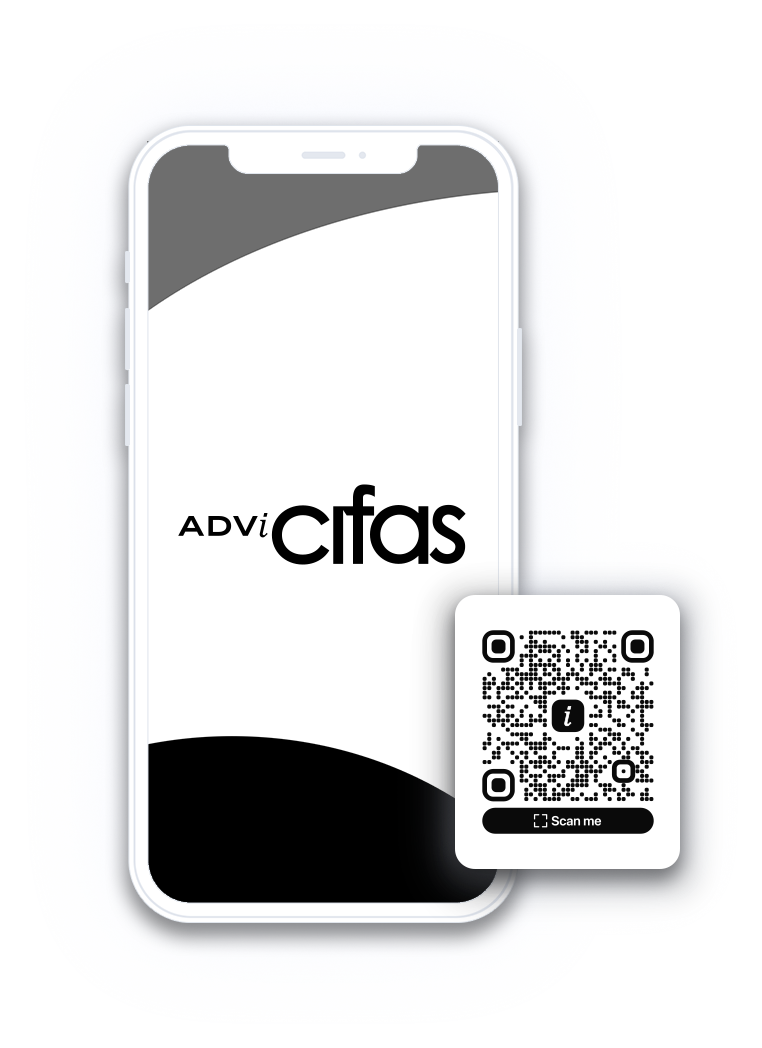
- Scan the QR code on this page with your phone, or press 'Register online' on the portal's login page
- Check you meet the eligibility criteria, press 'Proceed', then press 'Start'
- Under 'About you', enter your name, date of birth and email address, and tell us whether you live in the UK (with your postcode if you do)
- Under 'Your package', enter your client reference and package number
- Open the terms and conditions, read them to the end, and press 'I agree'. Agree to each declaration under 'Instruction to commence' in the same way, then press 'Continue'
- Choose a User ID and press 'Check' to see if it's available
- Create a password that meets the requirements shown, confirm it, and press 'Continue'
- Press 'Set up email codes', confirm your email address and press 'Send code'. Enter the 6-digit code we email you, press 'Verify', then 'Done'
- Under 'Backup details', enter a backup email address and a UK backup phone number, then choose and answer three security questions (keep a record of your answers for future use). Press 'Continue'
- Under 'Proof of identity', press 'Start verification' and follow the steps to check your photo ID
- Under 'Proof of address', upload your document
- Press 'Complete'. You'll see 'You're registered' while we review your registration
Your User ID must be 9 to 30 characters long, with no spaces, and can't be an email address. It's case-sensitive, so make a note of it exactly as you chose it, including any capital letters.
See Getting started for the identity and proof of address documents we accept. If you stop part way through registering, we'll email you a link so you can carry on where you left off.
How to log in
- Go to the portal's login page, 'Log in to your portal'
- Enter your User ID (case-sensitive) and password, then press 'Log in'
- Check your email and enter the 6-digit code we sent you, then press 'Verify'
- You're now logged in and taken to your dashboard
Can't get into your email? Press 'Can't get into your email?' on the code page. Email [email protected] with your full name and client reference, and we'll check your identity, update your email address and let you know within one business day.
Logging in with Apple or Google
Once you've linked your Apple ID or Google account, you can press 'Log in with Apple' or 'Log in with Google' on the login page instead of entering your User ID, password and email code. To link one, go to Manage account, open the Account tab and choose 'Apple Log In' or 'Google Log In' under Easy Log In. See Logging in with Apple or Google for more.
Forgotten your login details?
- On the login page, press 'Forgotten your login details?'
- Choose 'Reset your password' and press 'Continue'
- Tell us about you. If you don't know your User ID, choose 'No' and enter your name, date of birth and package details instead
- We'll email a link to the address on your account. It works once and expires in 1 hour
- Open the link, enter and confirm your new password, and press 'Continue'. You can then log in with your new password
